
Table of Contents
Accessing your G Suite Calendar
Accessing your G Suite Calendar via Mobile
How to Filter Calendar Responses from Gmail
Accessing your G Suite Calendar
To access your Samsara G Suite Calendar account, follow these steps:
- Open your web browser and log in to the Okta homepage.
- Once logged in, click on the tile labeled "G Suite Calendar" to access your Samsara Calendar.
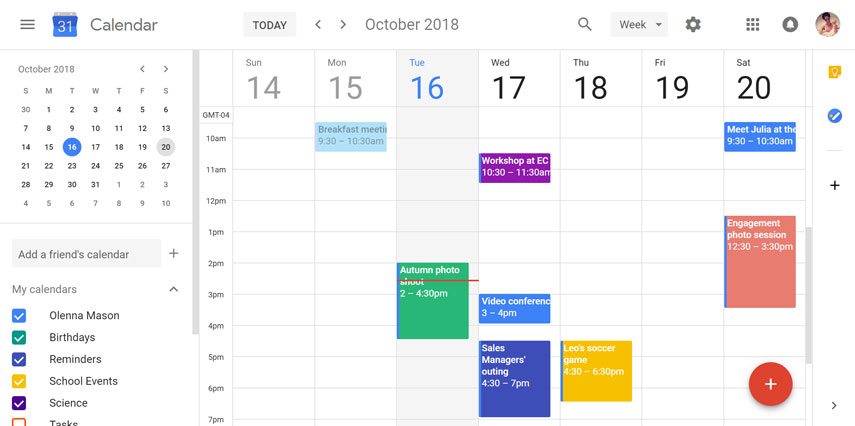
It should look about like this:
Accessing your G Suite Calendar via Mobile
You can access your calendar on a mobile device in a couple of different forms.
Google Calendar App
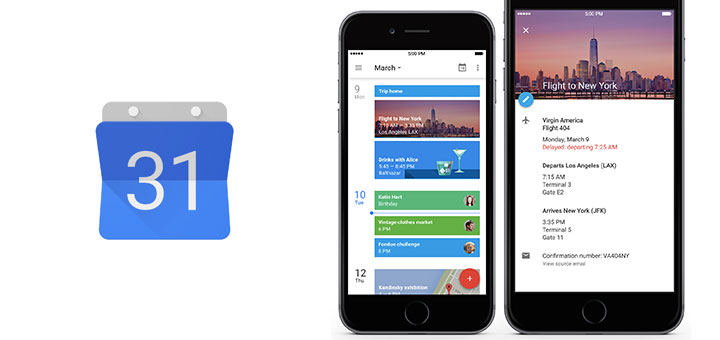
The Google Calendar app is available for iOS (link) and Android (link). This allows you to get notifications, and will be the best mobile experience.
Okta Mobile

If you only need occasional access and don't need notifications, you can access your calendar through the Okta Mobile app, available on iOS (link) and Android (link).
How to Filter Calendar responses from Gmail
-
Click the gear icon and then Click "See all settings"
-
Click the tab "Filters and Blocked Addresses." Scroll down until you see "Create a new filter." Click to continue.
- In the To field, enter your email address.
- Next, in the Has the words section, enter invite.ics OR invite.vcs
- Then, check the Has attachment box.
- Finally, click Create filter.
- Check the Skip the Inbox (Archive it) box to move response messages out of your inbox. Don’t worry, you can still view them later if needed.
-
Check the Apply the label box and choose a label to automatically sort incoming event response messages.
- If you are not sure how to create a label, please check out this article HERE for further information!
- If you want this to effect all past emails as well, click that last checkbox that says Also apply filter to ___matching conversations.
- Click Create/Update filter.

Comments
0 comments
Article is closed for comments.