
Full Disk Encryption
In full disk encryption, also known as hard drive encryption, the entire hard drive or volume — including all the files — is protected. During booting, a passphrase or secret key is required to unlock the drive before logging in with your user account credentials. Security requires full disk encryption on all Ubuntu devices.
What Is Linux Unified Key Setup (LUKS)?
LUKS is a standard hard drive encryption technology for major Linux systems including Ubuntu. It is a platform-independent disk encryption specification and the de facto disk encryption standard for Linux systems.
LUKS was originally developed for Linux systems and is used in nearly all Linux distributions. It is also a popular encryption format for network-attached storage (NAS) devices. It encrypts entire block devices, making it an ideal choice for encrypting SSD, hard disk drives, and even removable drives.
With LUKS, disk encryption can be enabled during the installation of an operating system. In fact, full disk encryption is only achieved during the installation of the Ubuntu Desktop operating system. It encrypts all the partitions including swap space, system partitions, and every bit of data stored on the block volume with the exception of the Master Boot Record (MBR).
How to Fully Encrypt Data on Ubuntu
If you already have a running instance of Ubuntu 22.04 and you want to enable full disk encryption, you’re required to reinstall it. You cannot fully encrypt it once it is installed. You can only encrypt directories or partitions post-installation. Security requires full disk encryption on all Ubuntu devices.
If you forget your encryption passphrase, all your data will be inaccessible. As such, it is recommended to pick one that you can easily remember or store on a password vault or manager. Better yet, if you have used a complex password, you can note it down in 1Password.
Additionally, before starting this process, be sure to backup any critical data to Google Drive that could potentially be lost during the reinstallation process.
Getting Started
We will skip the few installation steps and head straight to the “Installation Type” step that requires you to select your preferred disk partition mode. This guide was written with 22.04 LTS in mind but 24.04 LTS follows very closely.
Two options will be presented. The first one (the default option) is “Erase disk and install Ubuntu” which wipes out all the existing data and automatically partitions the drive. The second option is “Something else” which is used to manually configure the disk partitions yourself. Please note that you will not be able to enable full disk encryption by selecting the second option.
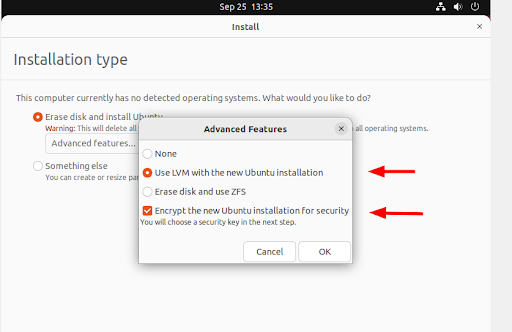
Select the first option: “Erase disk and install Ubuntu” and click the “Advanced features” button as indicated.

Once you click the “Advanced features” button, a pop-up appears. Be sure to select “Use LVM with new Ubuntu installation” and the “Encrypt the new Ubuntu installation for security” options.
Then click “OK.”
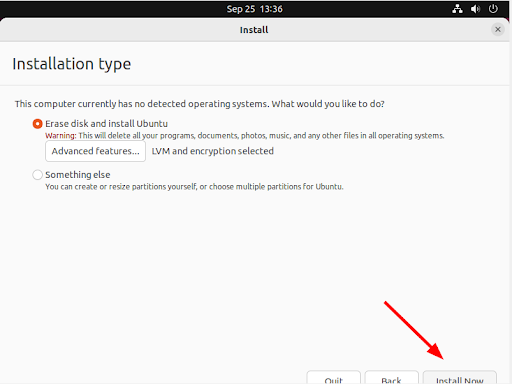
Next, assuming you have already backed up any important data, click “Install Now.”
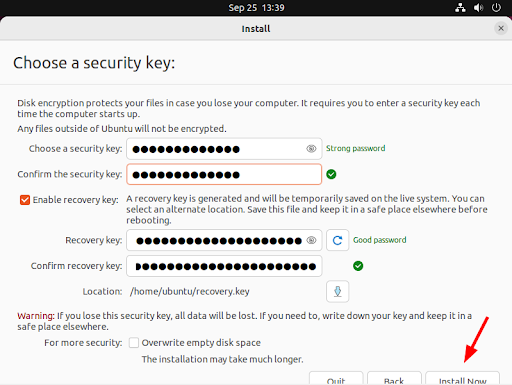
Disk encryption requires a security key in order to access your files each time your device boots. In this step, provide a strong security key or passphrase.
You can also enable a recovery key which enables a user to access the encrypted disk if they forget their password, or if the disk needs to be installed on a new device.
Learn how to generate a memorable password in 1Password.
You should share either one of the key from 1Password to the person you are working with in BizTech for disaster recovery after you're done installing the OS and ran the enrollment script and have opened a ticket in #help-biztech.
Then click “Install Now.”
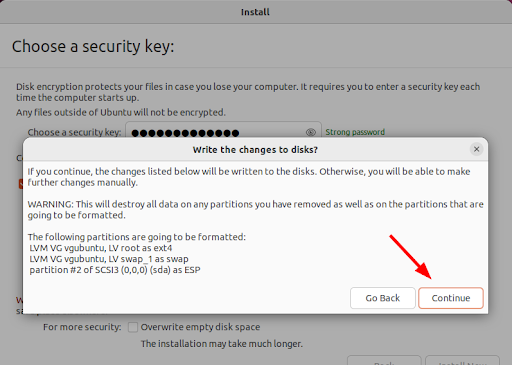
On the pop-up dialogue that appears, click “Continue” to write changes to the disk.
From here, continue with the installation process until the end, and finally, reboot the system. Provide the security key that you generated and hit ENTER prior to logging in.
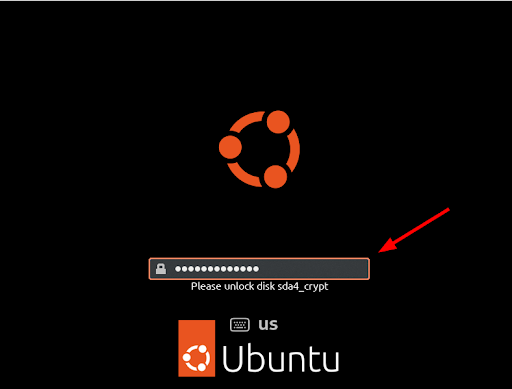
The secret key unlocks your drive thereby granting you access to your system.
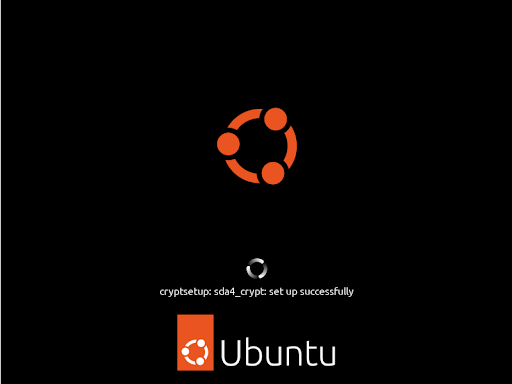
From here, you can log in to your new Ubuntu installation by providing your user account’s password and pressing ENTER.
Comments
0 comments
Article is closed for comments.